




איך למצוא סיסמאות באייפון עם iOS 18?

בעולם הדיגיטלי של ימינו, מכשירי אייפון מאחסנים אינספור סיסמאות לאפליקציות, אתרי אינטרנט, רשתות Wi-Fi ושירותים מקוונים. החל מכניסות לרשתות חברתיות ועד פרטי בנקאות, זכירת כל סיסמה באופן ידני היא כמעט בלתי אפשרית. למרבה המזל, אפל הפכה את ניהול הסיסמאות לקל מאי פעם, ועם iOS 18, מציאת וניהול סיסמאות שנשמרו באייפון שלכם מאובטחים, מרכזיים וידידותיים יותר למשתמש.
בין אם שכחתם סיסמה לאתר אינטרנט, צריכים לשתף גישה ל-Wi-Fi, או רוצים לבדוק את פרטי הגישה השמורים מסיבות אבטחה, iOS 18 מספק מספר דרכים מובנות לגישה לסיסמאות השמורות שלכם. במדריך זה, נדריך אתכם כיצד למצוא סיסמאות באייפון עם מערכת הפעלה iOS 18, נסביר שיטות גישה שונות ונכלול פרק נוסף על תיקון בעיות ברמת המערכת שעשויות למנוע גישה באמצעות סיסמה.
1. איך אני יכול למצוא סיסמאות באייפון iOS 18?
אפל המשיכה לשפר את מערכת הסיסמאות שלה ב-iOS 18, מה שמקל על איתור פרטי גישה שנשמרו תוך שמירה על הגנות אבטחה חזקות כמו Face ID, Touch ID וקודי גישה. להלן הדרכים היעילות ביותר למצוא סיסמאות באייפון שלכם.
1.1 מצא סיסמאות באמצעות אפליקציית הסיסמאות
עם iOS 18, אפל הציגה אפליקציית סיסמאות ייעודית , הפרדת ניהול סיסמאות מאפליקציית ההגדרות לגישה מהירה יותר וארגון טוב יותר.
שלבים למציאת סיסמאות באמצעות אפליקציית Passwords:
- פתחו את אפליקציית הסיסמאות באייפון שלכם.
- אימות זהותך באמצעות Face ID, Touch ID או קוד הגישה של המכשיר.
- עיין ברשימת החשבונות השמורים או השתמש בסרגל החיפוש בחלק העליון.
- הקש על אתר אינטרנט או אפליקציה כדי להציג: שם משתמש, סיסמה, אתר אינטרנט או אפליקציה משויכים
- הקש כדי להעתיק את הסיסמה אם עליך להדביק אותה במקום אחר.
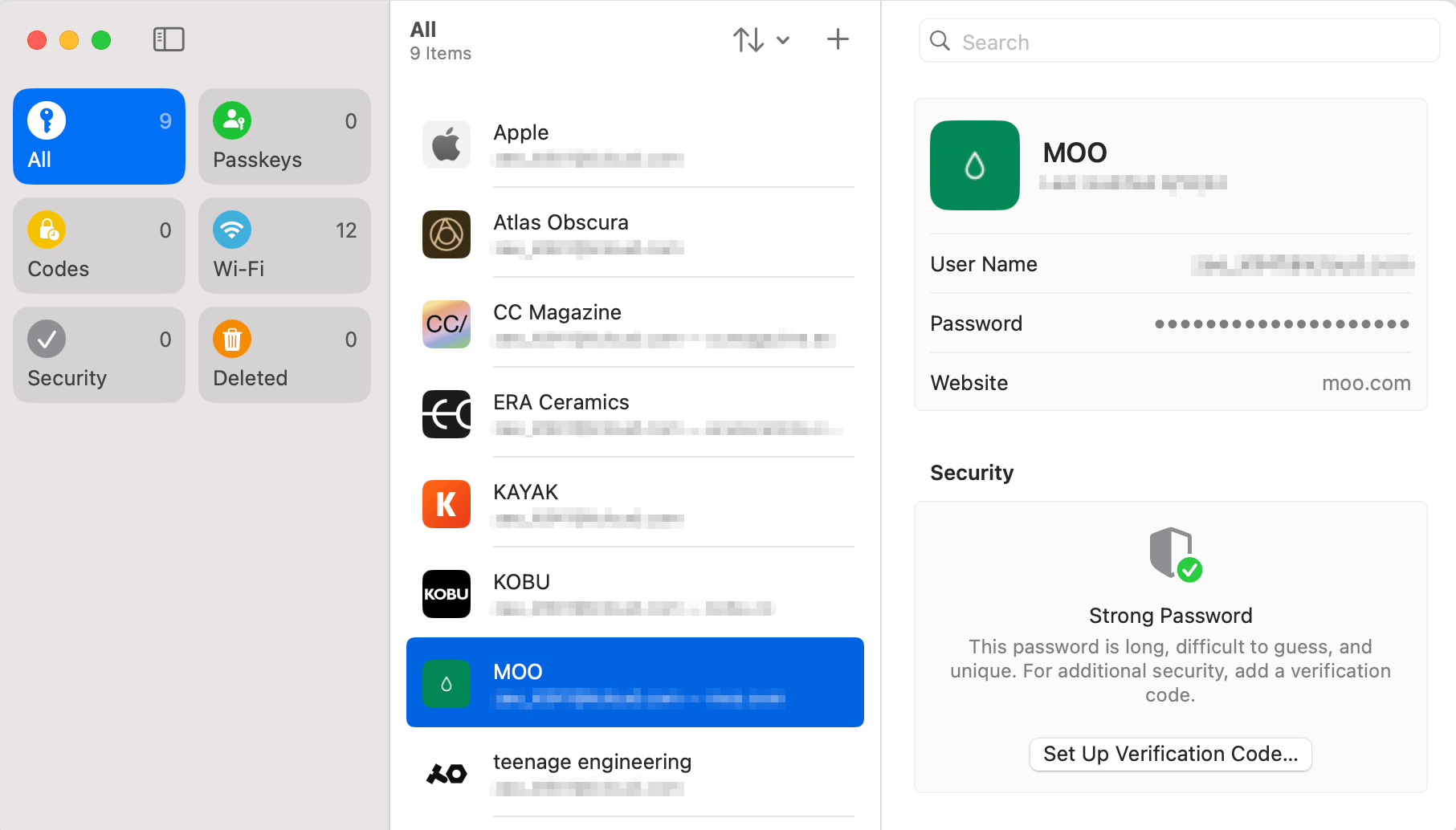
אפליקציה זו מציגה גם התראות אבטחה, סיסמאות שנעשה בהן שימוש חוזר ופרטי כניסה שנפרצו, ועוזרת לך לשפר את בטיחות החשבון הכוללת.
1.2 מצא סיסמאות דרך הגדרות
אם אתם מעדיפים את הגישה הקלאסית או שעדיין לא השתמשתם באפליקציית Passwords, עדיין תוכלו לגשת לסיסמאות השמורות דרך הגדרות.
שלבים:
- גִישָׁה הגדרות ולהמשיך ל זיהוי פנים וקוד גישה .
- אימות באמצעות Face ID, Touch ID או קוד גישה.
- בחר את האתר או האפליקציה שאת הסיסמה שלו ברצונך להציג.
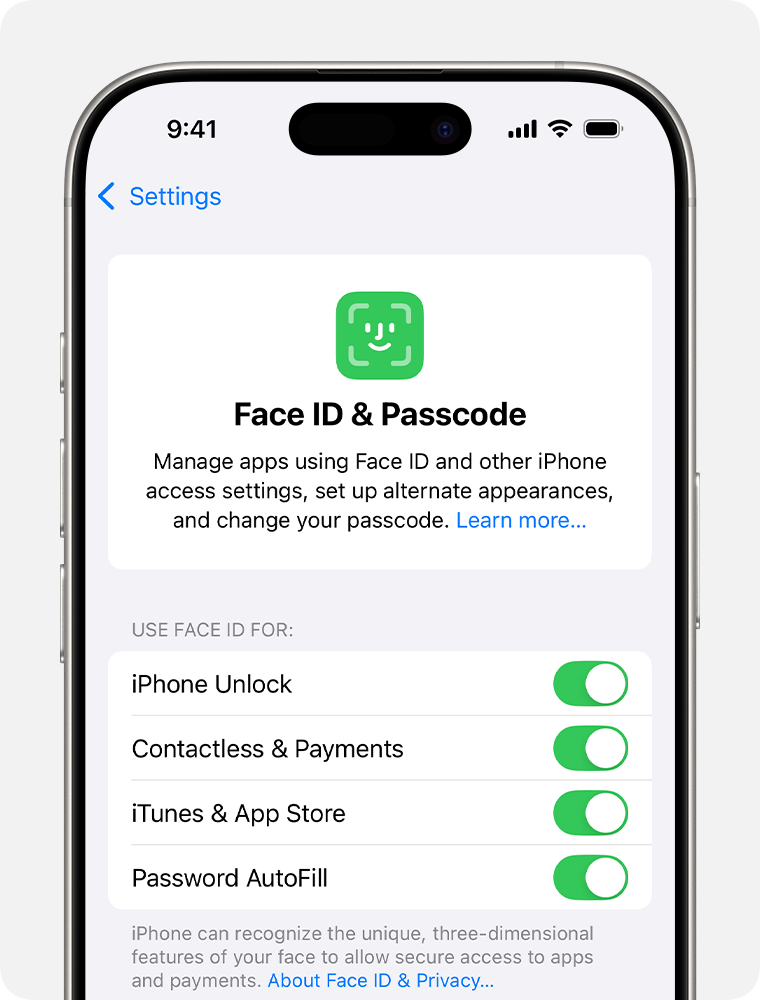
שיטה זו פועלת בצורה חלקה ונשארת אפשרות גיבוי אמינה ב-iOS 18.
1.3 השתמש במחזיק המפתחות של iCloud כדי לגשת לסיסמאות במכשירים שונים
אם אתם משתמשים במספר מכשירי אפל, מחזיק מפתחות iCloud מבטיח שהסיסמאות שלך יסונכרנו בצורה מאובטחת בין אייפון, אייפד ו-Mac.
כדי לוודא שצרור המפתחות של iCloud מופעל:
לִפְתוֹחַ הגדרות > הקש על שלך שם Apple ID בחלק העליון > בחר iCloud > סיסמאות ומחזיק מפתחות > לְמַתֵג סנכרן את האייפון הזה עַל.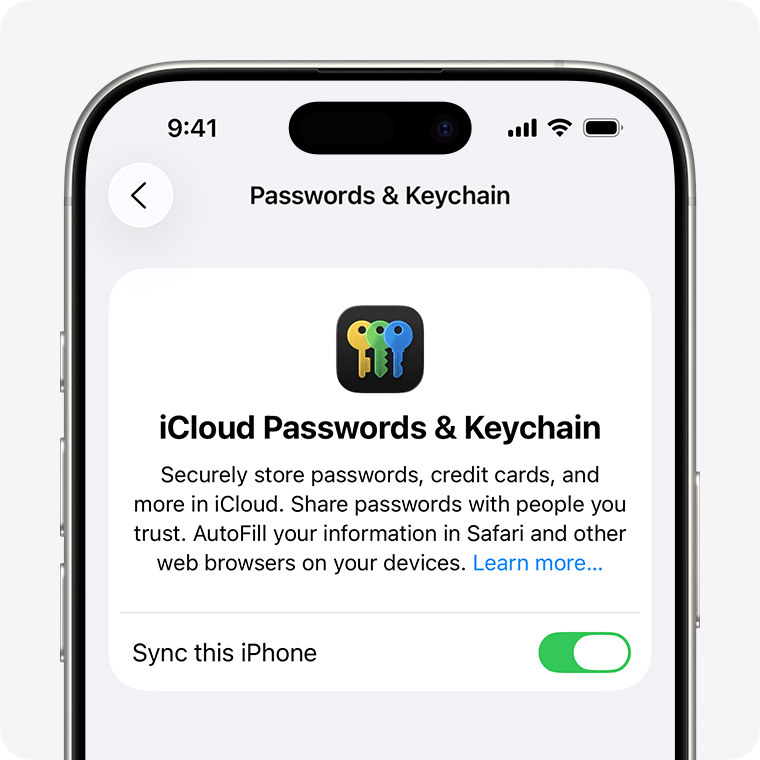
לאחר ההפעלה, כל הסיסמאות השמורות ב-iOS 18 יהיו נגישות במכשירים מחוברים אחרים, כולל מחשבי מקינטוש, דרך הגדרות מערכת או ספארי.
1.4 מצא סיסמאות Wi-Fi באייפון iOS 18
iOS 18 מאפשר צפייה ושיתוף ישירים של סיסמאות Wi-Fi בקלות רבה יותר.
שלבים לצפייה בסיסמת Wi-Fi:
עבור אל
הגדרות > Wi-Fi >
הקש על
ⓘ (סמל מידע)
ליד הרשת המחוברת > הקש על
סיסמה >
בצע אימות כדי לחשוף את סיסמת ה-Wi-Fi.
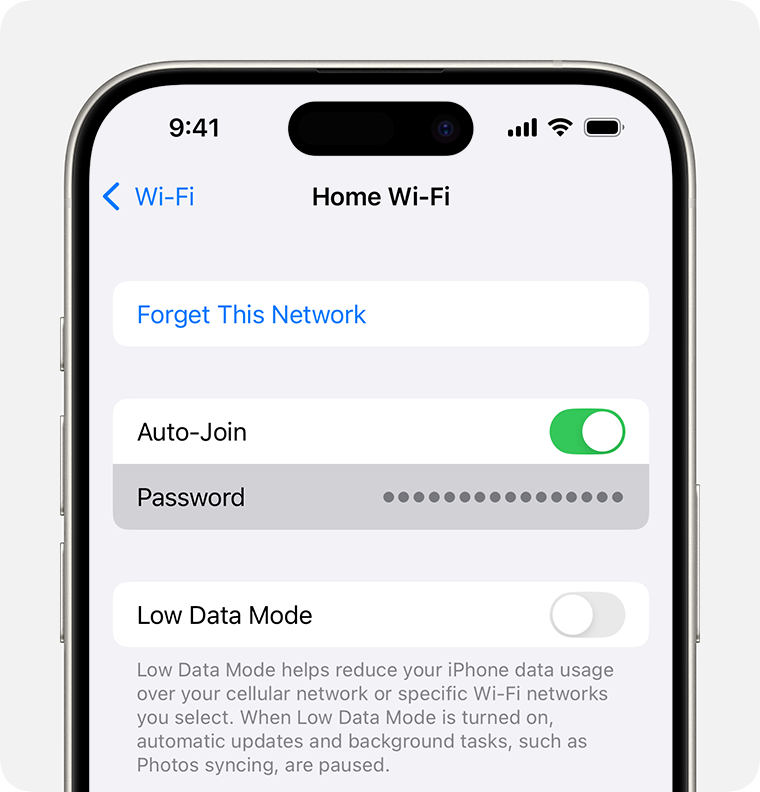
ניתן גם לשתף סיסמאות Wi-Fi באופן מיידי עם מכשירי Apple בקרבת מקום באמצעות הנחיות בסגנון AirDrop.
1.5 חיפוש סיסמאות לאפליקציות שנשמרו בספארי ובמילוי אוטומטי
סיסמאות רבות של אפליקציות ואתרים נשמרות באמצעות תכונת המילוי האוטומטי של ספארי.
כדי לבדוק את הגדרות המילוי האוטומטי:
עבור אל
הגדרות > ספארי >
בֶּרֶז
מילוי אוטומטי >
לְהַבטִיחַ
סיסמאות
ו
פרטי קשר
מופעלים.
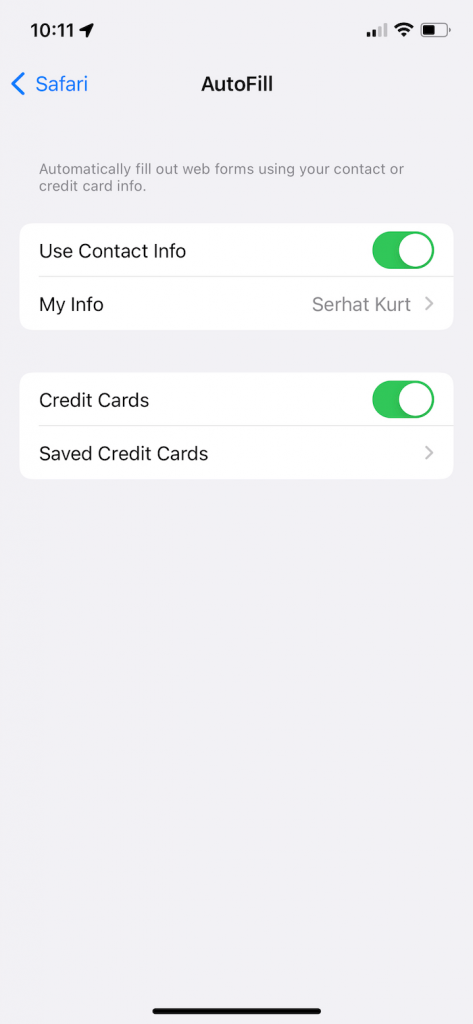
ספארי משתמש בסיסמאות שנשמרו באופן אוטומטי, וניתן לצפות בהן ידנית דרך אפליקציית הסיסמאות או ההגדרות.
2. בונוס: תקן בעיות מערכת ב-iOS 18 עם AimerLab FixMate
לעיתים, תקלות במערכת עלולות למנוע ממך גישה תקינה לסיסמאות שנשמרו. ייתכן שתיתקל בבעיות כגון:
- אפליקציית הסיסמאות לא נפתחת
- Face ID או Touch ID נכשלים במהלך האימות
- הגדרות קופאות או קורסות
- מחזיקי מפתחות iCloud לא מסתנכרנים כראוי
- אייפון תקוע או לא מגיב לאחר עדכון iOS 18
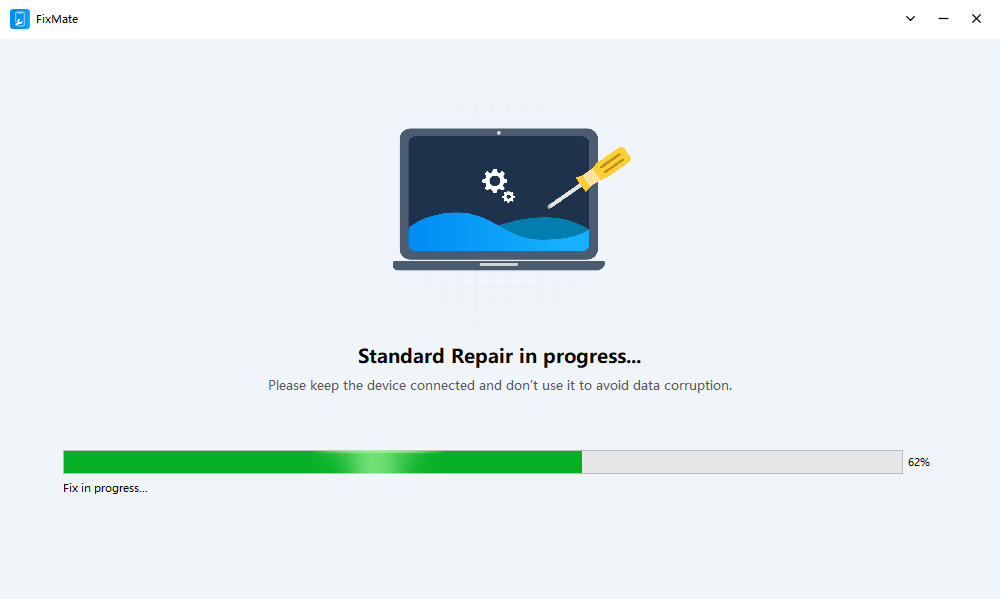
במקרים כאלה, כלי תיקון מקצועי למערכות iOS כמו AimerLab FixMate יכול לעזור. AimerLab FixMate הוא כלי תיקון מערכת iOS רב עוצמה שנועד לתקן מעל 200 בעיות באייפון ובאייפד ללא אובדן נתונים. הוא שימושי במיוחד לאחר עדכוני iOS גדולים כמו iOS 18, כאשר באגים או התנגשויות עלולים להשפיע על תכונות מערכת כגון גישה באמצעות סיסמה.
כיצד להשתמש ב-FixMate:
- הורד והתקן את FixMate במחשב Windows שלך מהאתר הרשמי של AimerLab.
- הפעילו את FixMate וחברו את האייפון או האייפד שלכם למחשב באמצעות כבל USB.
- בחרו "תיקון רגיל" (מומלץ לתיקון בעיות ללא אובדן נתונים) או "תיקון עמוק" (מומלץ לתיקון בעיות גדולות) בהתאם לצרכים שלכם.
- הורד את הקושחה הנדרשת כאשר תתבקש (FixMate ידריך אותך אוטומטית).
- התחל לתקן והמתן להשלמת התהליך. לאחר סיום התהליך, המכשיר שלך יופעל מחדש באופן אוטומטי, ובעיית ה-iOS אמורה להיפתר.
3. מסקנה
iOS 18 מאפשר לך למצוא סיסמאות בקלות ובבטחה באייפון שלך, הודות לאפליקציית Passwords החדשה, גישה משופרת להגדרות, סנכרון צרור מפתחות iCloud ושיתוף סיסמאות Wi-Fi פשוט. כלים מובנים אלה עוזרים לך לנהל את כל האישורים השמורים שלך במהירות ובבטחה.
אם בעיות מערכת מונעות ממך גישה לסיסמאות - כגון קריסות אפליקציה, שגיאות Face ID או באגים בעדכון iOS 18 -
AimerLab FixMate
זהו פתרון אמין. הוא מתקן בעיות במערכת iOS ללא אובדן נתונים ועוזר לשחזר גישה רגילה לסיסמאות שלך, מה שהופך אותו לכלי מומלץ מאוד לשמירה על תפקוד תקין של האייפון שלך.